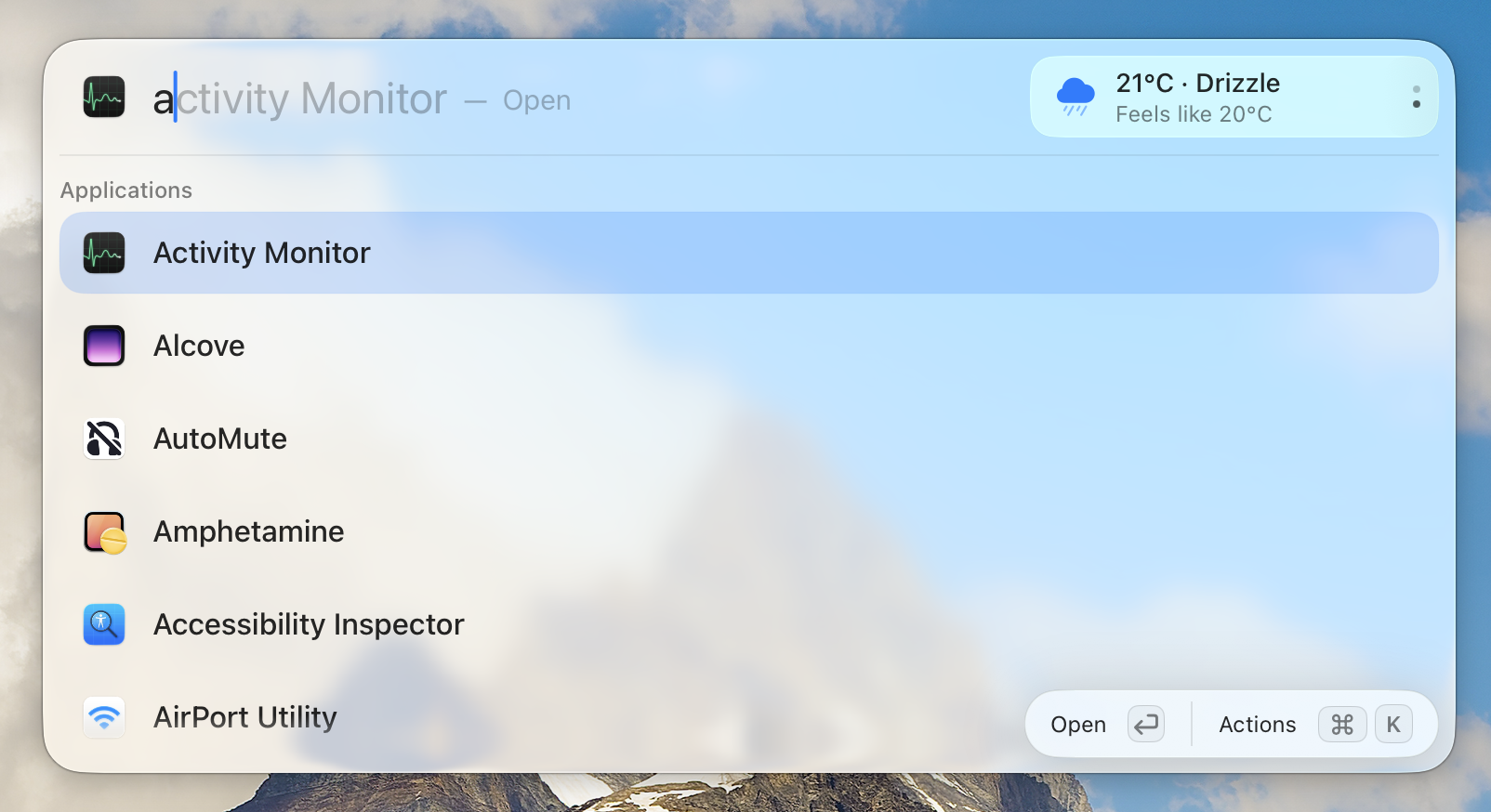
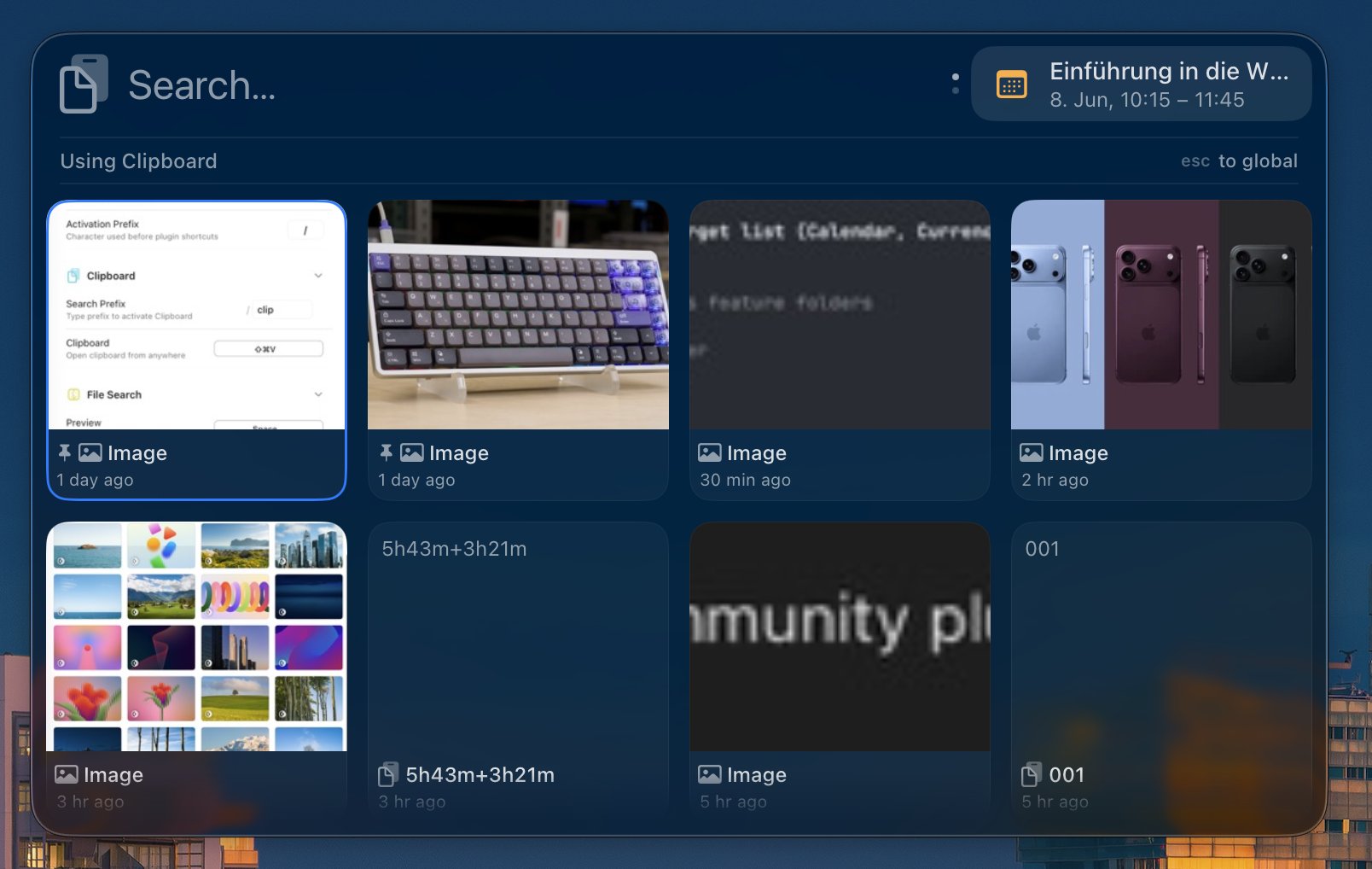
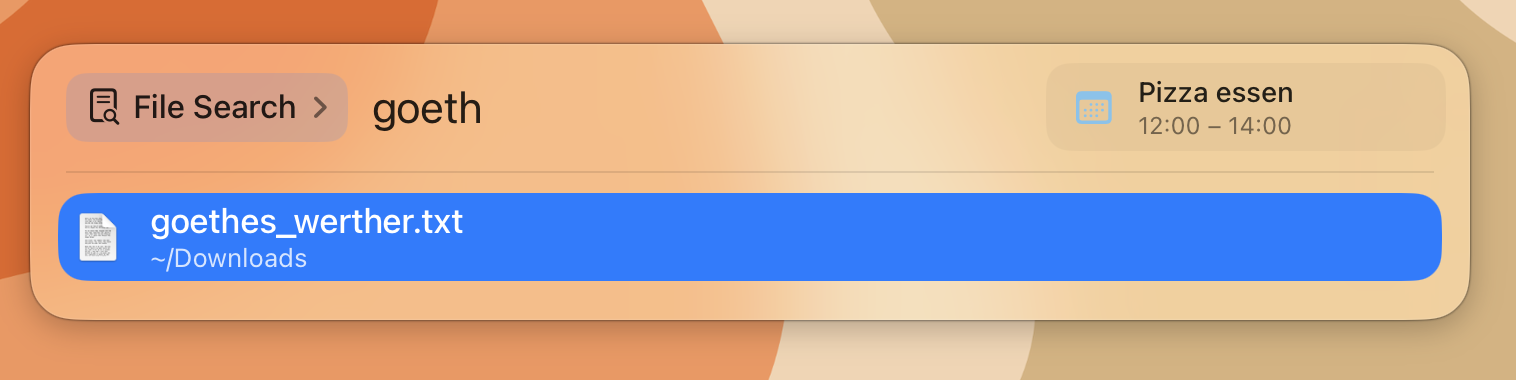
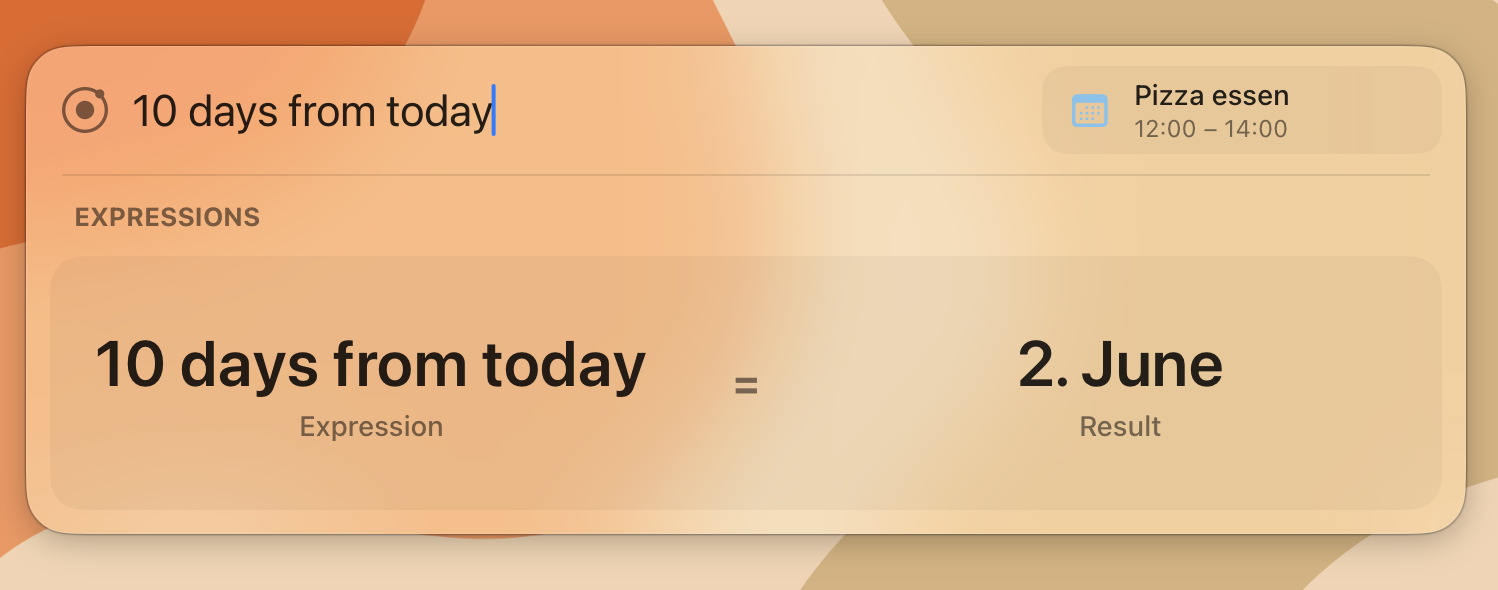
Kepler 0.8.0-pre
#Saturday Drop: Let's plug it in
Plugins and the Plugin Store
Kepler now has a built-in plugin store. You can search for plugins, install them with one click, and use them immediately. Global hotkeys provided by plugins work as soon as the installation finishes.
How it works
Plugins are regular npm packages. The store itself is a curated list of approved packages. Kepler loads that list, then checks npm for the latest version, description, and package download.
The catalog is cached locally, so you can still open the store while offline. Kepler will simply warn you that the list may not be up to date.
Before installing a package, Kepler verifies its SHA-512 checksum against the value published by npm. It also rejects archives containing symlinks, unsafe paths, or files that exceed the configured size limits.
Kepler only extracts the files it actually needs: the plugin manifest and its entry point.
Installs and updates are atomic. Kepler keeps the previous version until the new one has loaded successfully. If the update fails or crashes halfway through, the previous version is restored.
Updates that request additional permissions or network access require approval. Other updates can be applied automatically.
Later
- Install plugins directly from Git repositories without publishing them to npm
- Browse plugins and screenshots on the Kepler website
- Install plugins from the website with one click
Added
- Plugin Store: Browse and install plugins without leaving Kepler.
- Delta Updates: Kepler now downloads only the parts of an update that changed.
Changed
- Menu Bar Interaction: Left-clicking the menu bar icon opens its menu. Right-clicking opens Kepler.
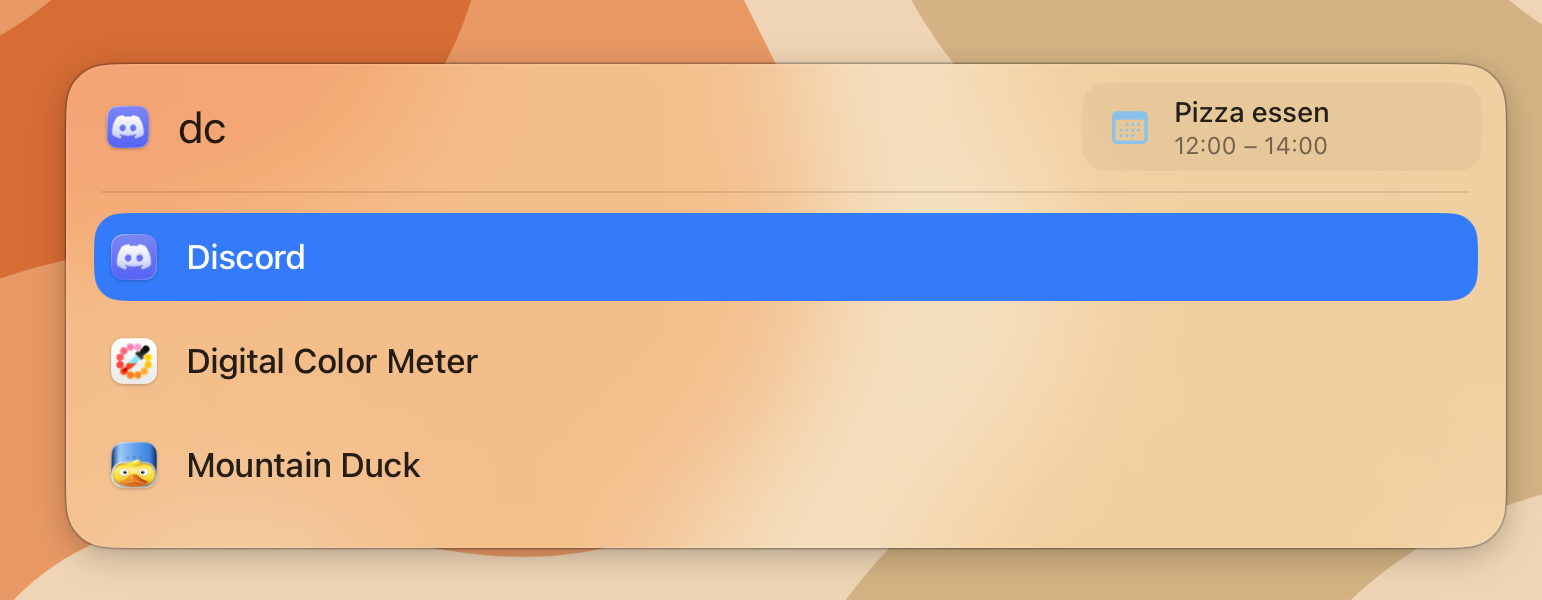
- Search Ranking: Exact matches now rank above fuzzy matches.
- Space Switching: Kepler remains on the Space where it was opened instead of following you when switching Spaces.
- Licensing: Kepler now uses the new licence server and verifies licence checks end to end. This should reduce incorrect “unlicensed” states on unstable connections.
Fixed
- Crash when connecting or disconnecting a dock: Rebuilding the menu bar after a display change could cause Kepler to quit without showing an error.
- Launcher position after a display change: Kepler no longer tries to open on a disconnected display or gets stuck outside the visible screen area.
- Wick wake-up behaviour: Kepler no longer activates Wick while Wick is not active.